
Back to Catalog


 🔧 Installation Guide
📄 User Manual (PDF)
⬇ Flagtronics Device Manager
🔧 Build Guide (Login Required)
💻 Programming (Login Required)
📦 3D Files (Login Required)
🔧 Installation Guide
📄 User Manual (PDF)
⬇ Flagtronics Device Manager
🔧 Build Guide (Login Required)
💻 Programming (Login Required)
📦 3D Files (Login Required)
















In-Car Systems
¶ FT-200 In-Car Flag System
Complete wireless flag communication system for race officials with dual-channel support and customizable flag displays. Includes FT-200 display unit with high-brightness LED matrix, power and connectivity harness with integrated GPS antenna connection, and 6-foot high-precision 10Hz GPS antenna for accurate track positioning. Ready to install with multiple mounting options for any vehicle configuration.
¶ 📦 Specifications
Display Size5.5" W × 2.5" H × 1.25" D
Display TypeHigh-brightness LED matrix
Power5V DC (USB) or
12V DC (vehicle power)
MountingDash/Panel Velcro, Windshield Suction,
or Roll Cage Adapter Mounts
¶ 📦 Components Included
1x

FT-200 Display Unit
Main LED display with dual-channel receiver

1x


¶ ⚡ Compatible Accessories
FT-200 Visor
Anti-glare sunshade visor attachment for improved visibility in bright conditions
🛒 View Product ↗
FT-200 1/4-20 Adaptor Plate Mount Kit
Standard camera mount adapter for versatile mounting options
🛒 View Product ↗
Suction Cup Mount GoPro Adaptor Plate Kit
GoPro-compatible mounting system for dashboard or windshield installation
🛒 View Product ↗
GPS Antenna Extension Cable
Extended GPS antenna cable for optimal satellite reception positioning
🛒 View Product ↗
FT-200 Auxiliary Battery
Backup battery pack for extended operation without vehicle power
🛒 View Product ↗
¶ ⬇ Downloads & Resources
User Manual (PDF) ↗Complete product documentation
Flagtronics Device Manager ↗Install the latest firmware for features and improvements. Simplified process with no series selection required. Keep devices updated quickly across all events.
Latest Firmware ↗Download the current firmware file for manual installation
¶ 📖 Interactive Guides
Step-by-step Scribe walkthroughs for the FT-200.
Older FT-200s, especially units that show COM when connected to a computer, can have trouble updating to the latest firmware and bootloader. Work through these steps to recover a unit that will not take an update.
Before you start, have these ready:
- The Flagtronics harness and its USB cable.
- Flagtronics Device Manager installed on your computer.
- The
FT200-Update-Before-Serial-223recovery folder, unzipped somewhere you can reach it (needed from step 11 on).
- Connect the USB on the Flagtronics harness to a computer. The FT-200 should turn on automatically. On older units this can take a few seconds.
- Hold the bottom white button on the front of the FT-200 for about 15 seconds, or until you see purple scrolling text.
- On your computer, open Flagtronics Device Manager (direct download link).
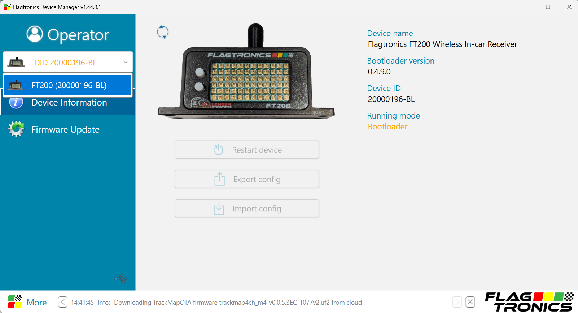
- On the left side, the FT-200 should be selectable from the white drop-down menu.
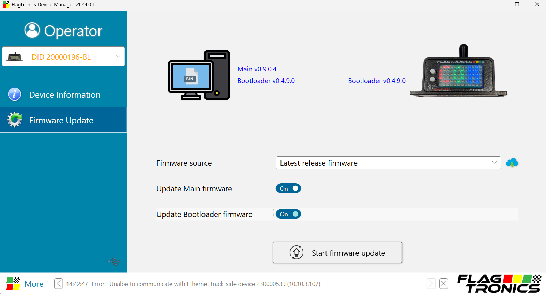
- Click Firmware Update.
- Check Update Bootloader firmware to change it to on.
- Click Start firmware update.
- If the update fails, continue with step 8.
- If the update is successful, see step 17.
- If the unit fails to update at step 7, restart it.
- If the purple text is scrolling, hold the bottom button until the screen changes.
- Hold the top button until the FT-200 screen says OFF.
- You can also power cycle the FT-200 by disconnecting the inline battery and unplugging the USB from the computer, then reconnecting the USB to the computer.
- Wait 5 seconds.
- Press the top button on the FT-200 to turn it back on, then hold the bottom button until the purple scrolling text appears.
- On your computer, open the
FT200-Update-Before-Serial-223folder. - In that folder, open the Step 1 folder.
- Drag
flagging.binto the firmware folder on the FT-200 drive. Click accept when it asks you to replace the file.- When step 13 is complete the FT-200 screen should change to light blue scrolling text.
- Open the Step 2 folder and drag
appload.binto the firmware folder on the FT-200 drive. Click accept when it asks you to replace the file.- When step 14 is complete the FT-200 screen should go back to purple scrolling text.
- Open the Step 3 folder and drag
flagging.binto the firmware folder on the FT-200 drive. Click accept when it asks you to replace the file.- Step 15 should finish the update process.
- If the FT-200 does not take the file properly at any step from 13 to 15, work through 16a to 16d in order, stopping as soon as the unit takes the update.
- Turn the FT-200 off and unplug the USB from your computer. Hold both buttons on the FT-200. Still holding the buttons, connect the USB to your computer. Hold the buttons until purple text starts scrolling.
- After following 16a, repeat steps 13 to 15. Sometimes you have to try this a few times before it works. If that still does not work, see 16c.
- Repeat 16a to restart the unit and get it into update mode. Open Flagtronics Device Manager and update Main firmware and bootloader firmware.
- If 16c fails, repeat 16a, then try again with Flagtronics Device Manager, but this time do not check update bootloader.
- The unit should update to the latest firmware and bootloader.
- You can confirm this by looking in the Firmware Update tab on the left and seeing that the Main and Bootloader versions next to the PC icon match the ones next to the FT-200, as shown in 17c.
- If the unit now appears in Flagtronics Device Manager but the main or bootloader firmware is out of date, update the unit again in Flagtronics Device Manager.
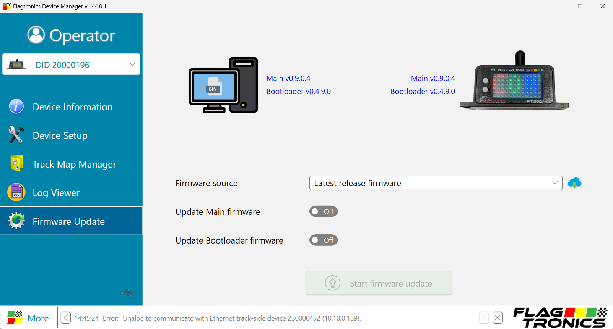
Firmware versions: as of 2026-09-10 the latest Main firmware is
v0.9.0.4 and the latest Bootloader is v0.4.9.0. Newer releases will show different numbers - what matters at step 17 is that the computer side and the FT-200 side match.
¶ 🎬 Videos
¶ ⚠ Troubleshooting & FAQs
⚠ Display not powering on
Check 12V power connection and inline fuse. Ensure vehicle ignition is on. Verify cigarette lighter socket is working by testing with another device.
⚠ No wireless signal received
Verify you are on the correct channel (A or B). Check that transmitter is powered and within range (1000 ft max). Ensure no metal obstructions blocking signal.
⚠ Display is dim or hard to read
Adjust brightness settings using the configuration menu. Clean display surface. If in direct sunlight, reposition unit or use sunshade. Check power voltage is 12V minimum.
⚠ Suction mount keeps falling off
Clean windshield and suction cup thoroughly with alcohol wipe. Ensure surface is smooth and free of texture. Press firmly and flip locking lever. Replace suction cup if worn.
⚠ Unable to connect for firmware update
Install Flagtronics Device Manager software first. Use the provided USB cable. Ensure display is powered on. Try a different USB port on your computer. Check for driver updates in Device Manager (Windows).
⚠ Wrong flags displaying
Verify channel selection matches your track's configuration. Reset unit to factory defaults and reconfigure. Update to latest firmware. Check for interference from other wireless devices.
⚠ Intermittent power loss
Check all power connections are secure. Inspect power cable for damage. Test cigarette lighter socket with multimeter. Consider hardwire installation if socket is unreliable.
⚠ Configuration settings not saving
Allow 5 seconds after making changes before disconnecting power. Perform a firmware update to latest version. If issue persists, contact Flagtronics support for warranty service.
Still having issues? Contact Flagtronics technical support at flagtronics.com for additional assistance.